




Recherche rapide
Tablette à dessin numérique
Moniteur de dessin
Imprimante 3D
Language
Choisir votre région et pays
North America
South America
Oceania
Europe
Recherche rapide
Tablette à dessin numérique
Moniteur de dessin
Imprimante 3D
Choisir votre région et pays
North America
South America
Oceania
Europe
Why does the connection keep failing at the final Wi-Fi setup step?
Step 1: Check whether the Wi-Fi password is correct. Enter the correct password for the selected Wi-Fi network (this is a common connection issue) to pair successfully.
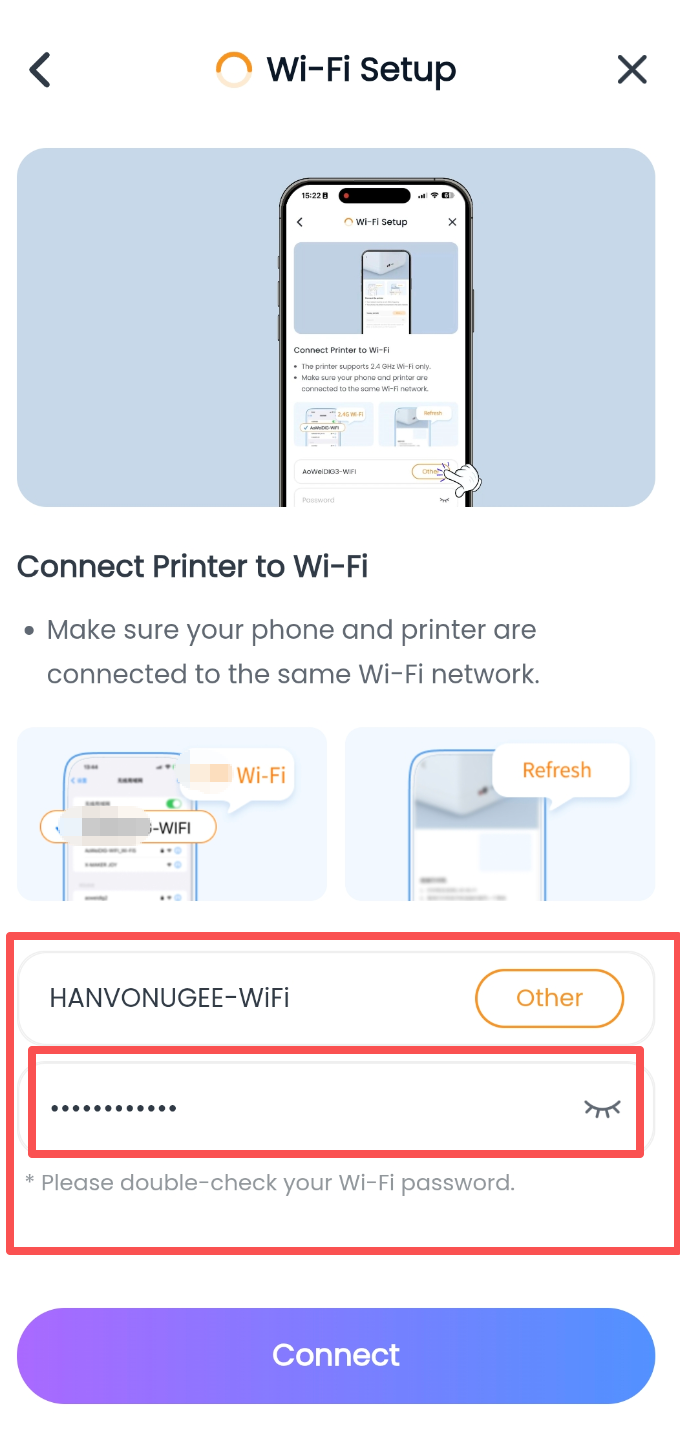
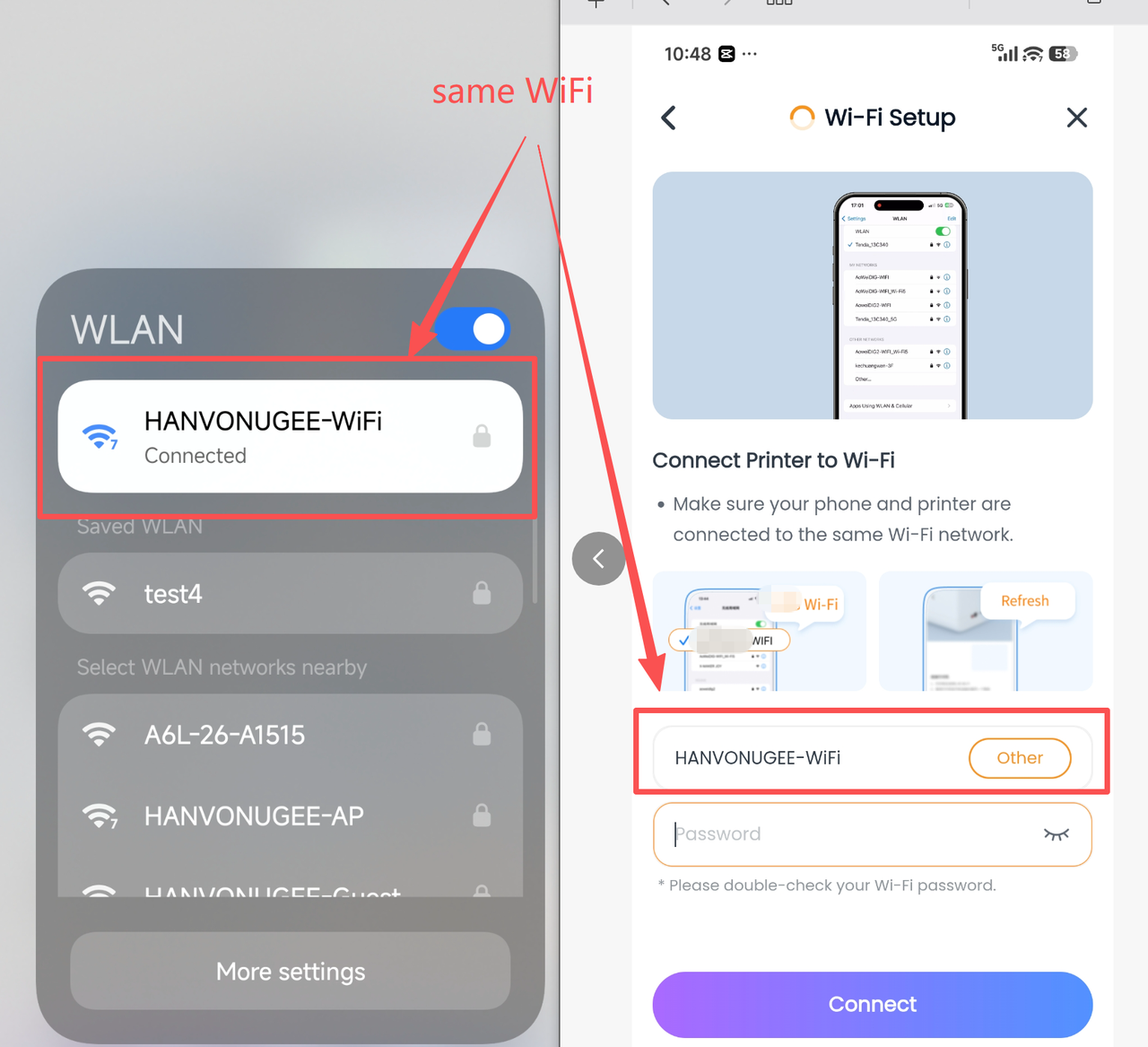
Step 2: Check whether the Wi-Fi network connected to the phone matches the selected Wi-Fi network. The phone’s Wi-Fi must match the Wi-Fi selected under “Network Configuration” in the app for pairing to succeed.
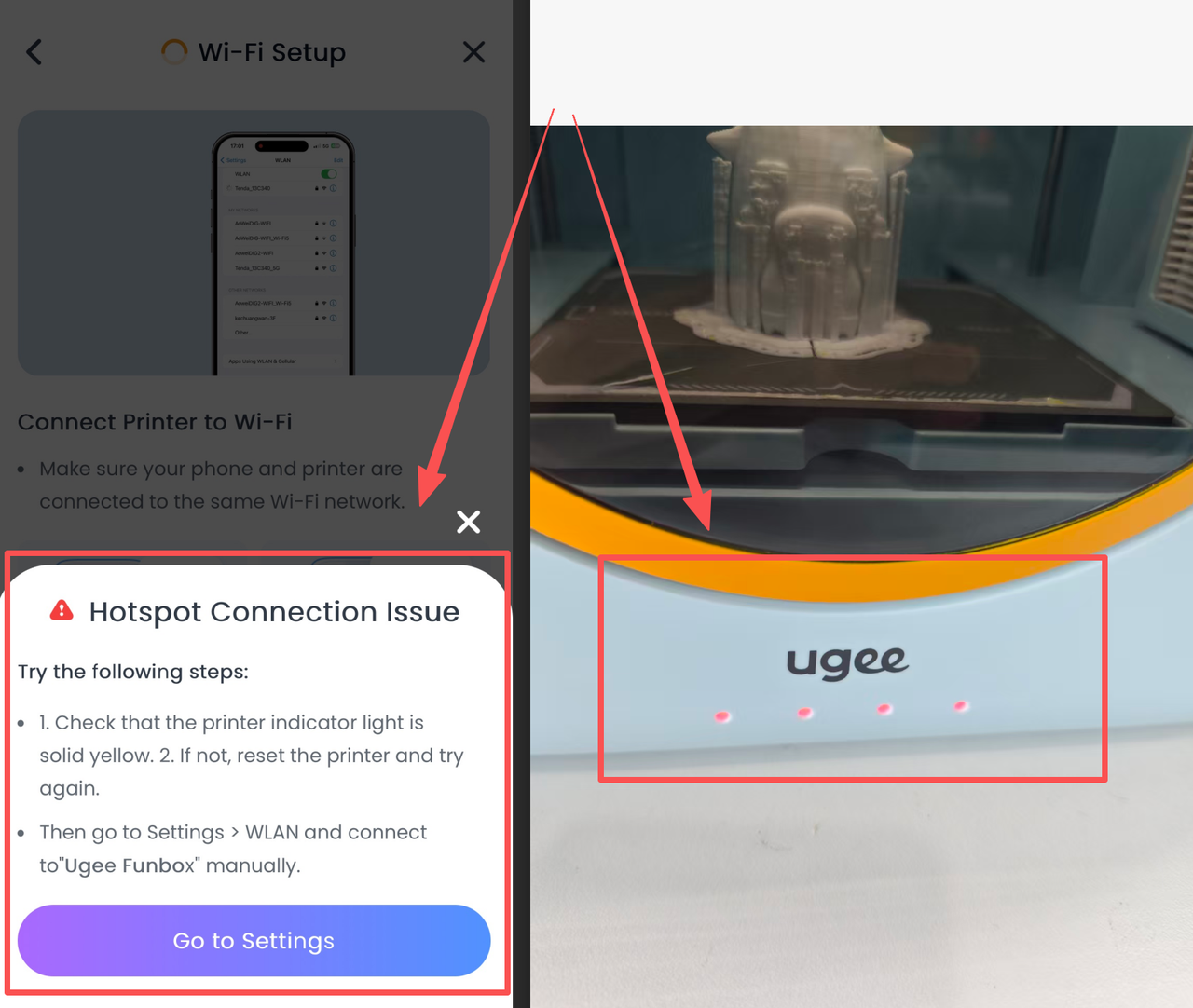
Action 1: If the printer status light is red, press and hold the red button on the back of the printer until the indicator becomes solid yellow. Then exit the app and restart the printer network configuration process.
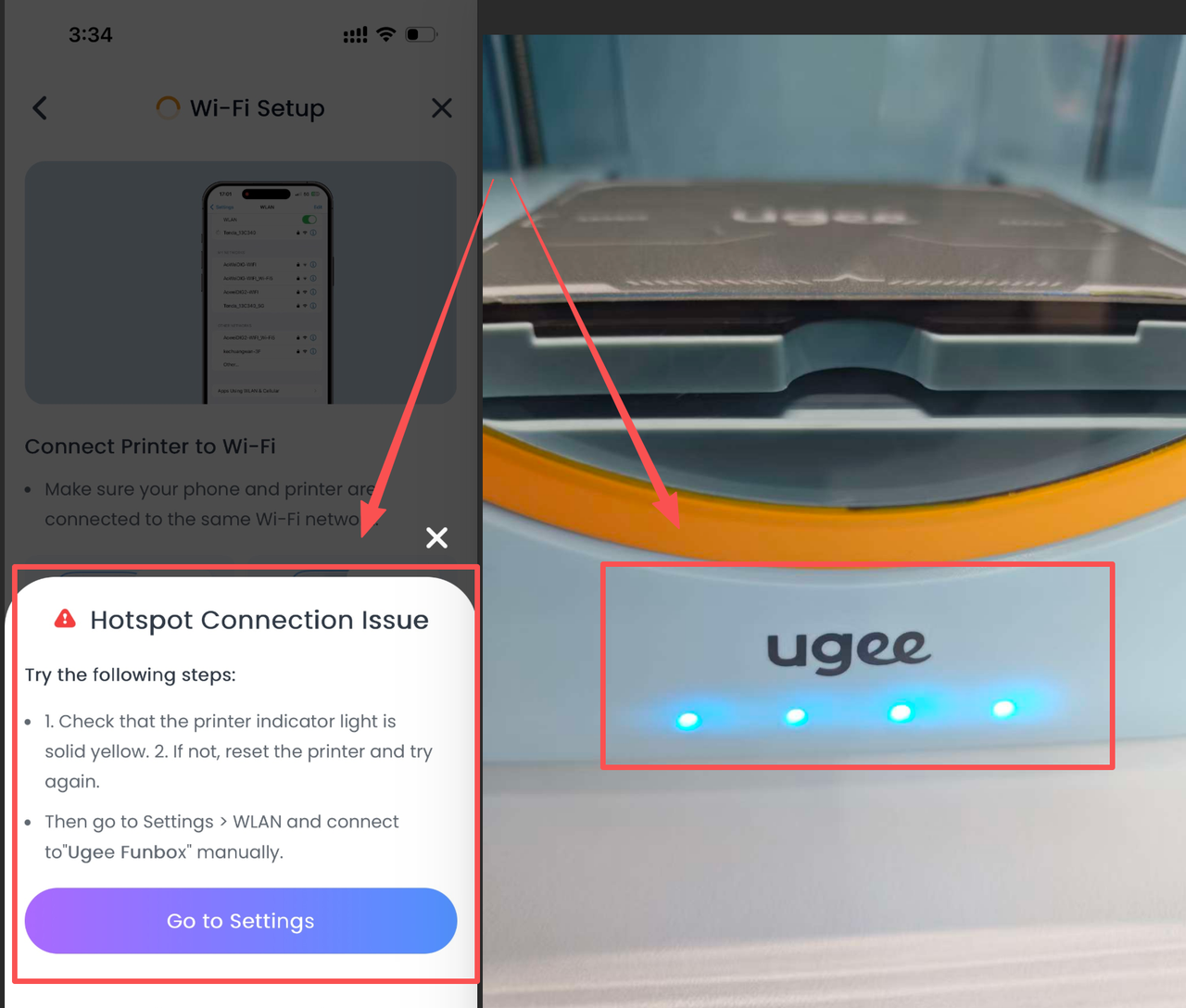
Action 2: If the printer status light is solid blue and you heard a beep, the phone has actually connected to the printer, but the app reported an error due to network latency. Restart the app and tap the Device button to confirm that the printer is connected.
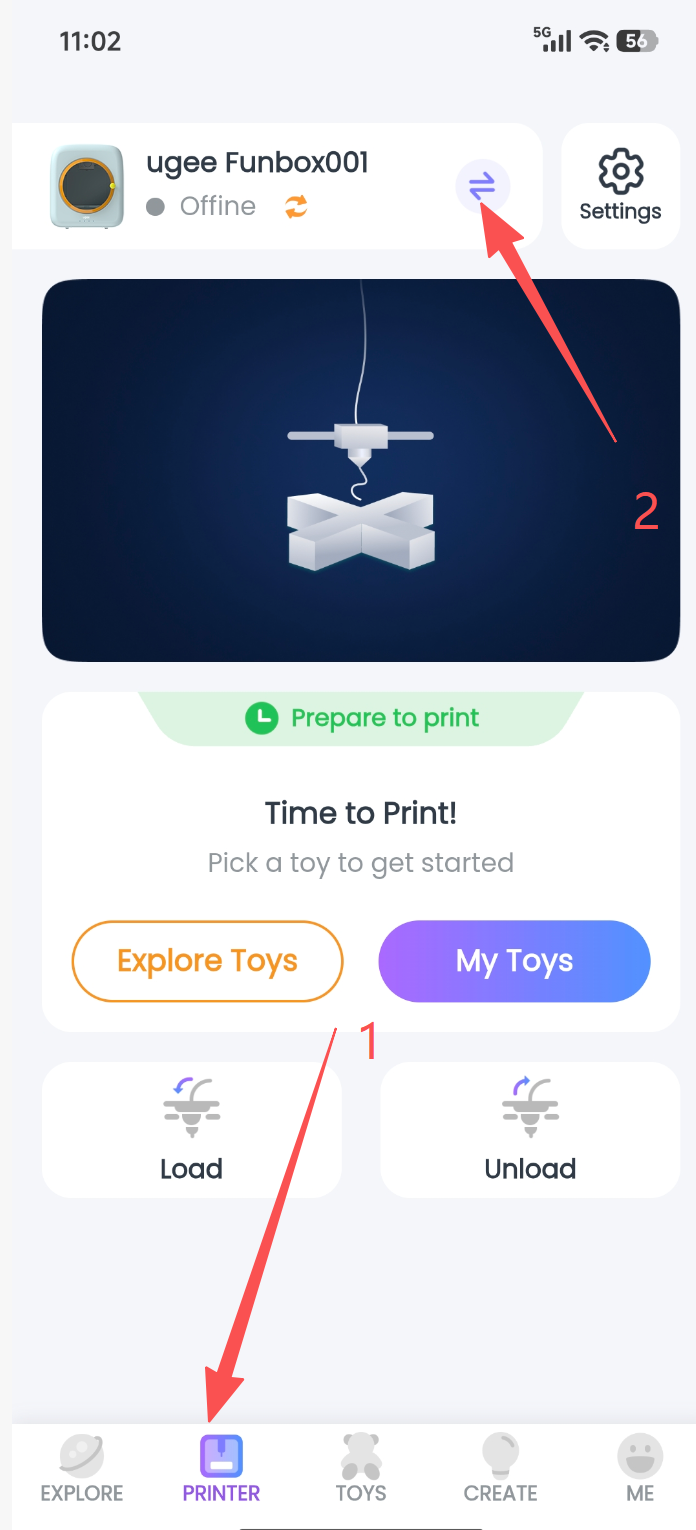
Step 4: If you followed all on-screen instructions but still cannot connect, turn off the printer and press the red button again until the yellow light remains on. Then remove the connected printer and pair it again.
Step 4-1: Tap the “Device” button at the bottom of the app, then tap the “Switch” button for the connected printer at the top.
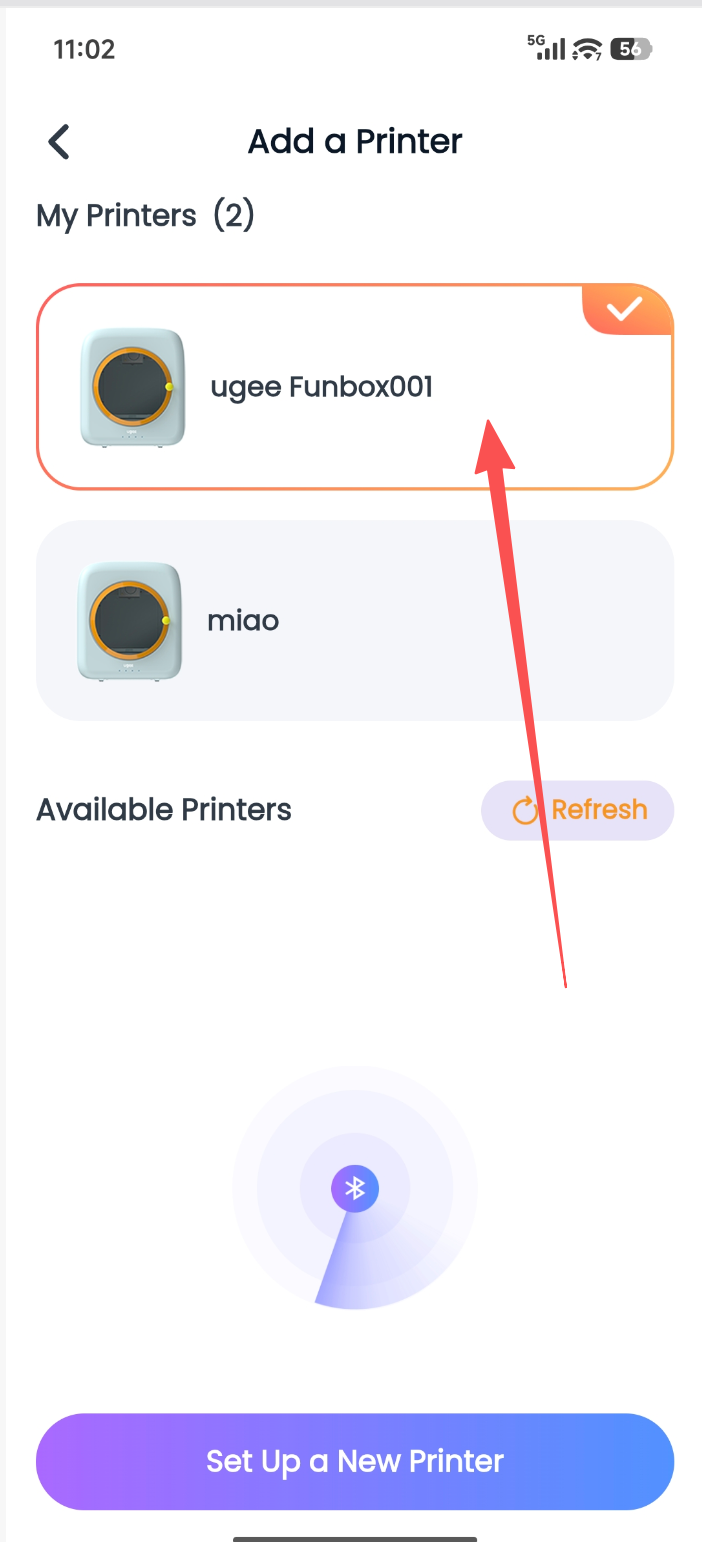
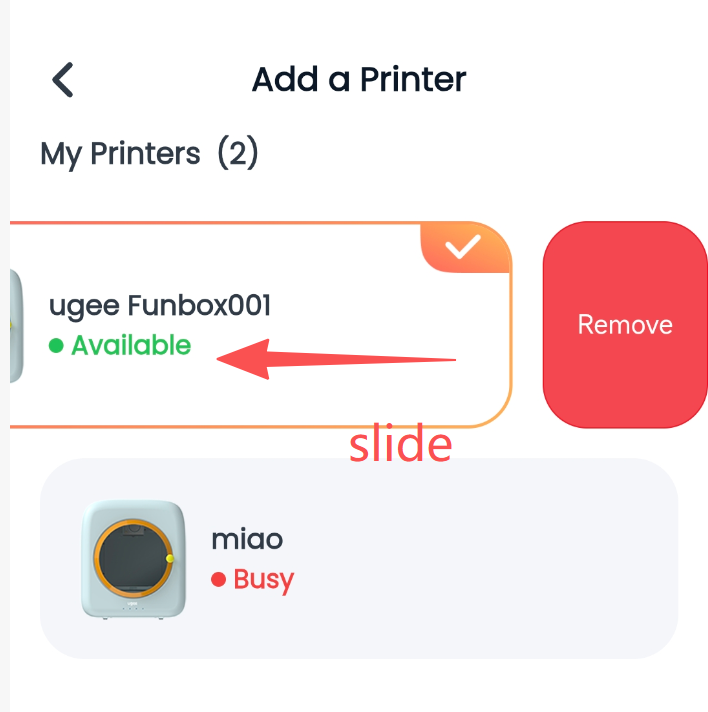
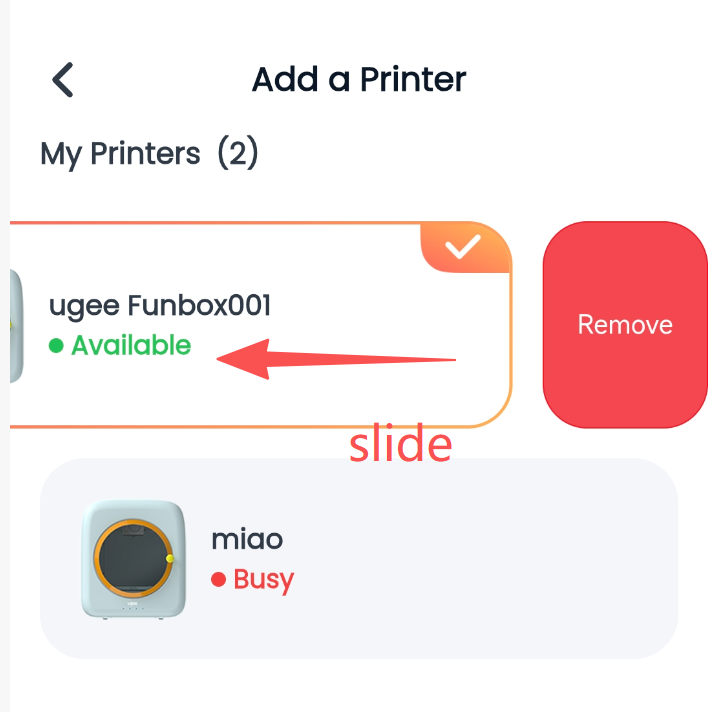
Step 4-2: Open the Add Printer page and view the My Printers list.
Step 4-3: Swipe left on every device in My Printers and tap “Unbind.”
Step 4-4: When the “Binding successful” message appears, select “Configure a new printer” to start reconnecting and configuring the network.
Choisir votre région et pays
North America
South America
Oceania
Europe